


Notifications
You need the Home Assistant app to be installed on Android or iOS and enable notifications.
First sign in to companion app on your mobile phone (iOS or android) to allow the mobile phone to be discovered by Home Assistant.
Check Mobile App Integration: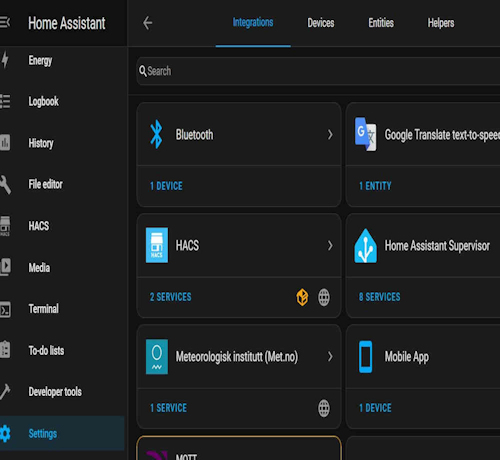
Go to settings > automations & scenes > create new automation

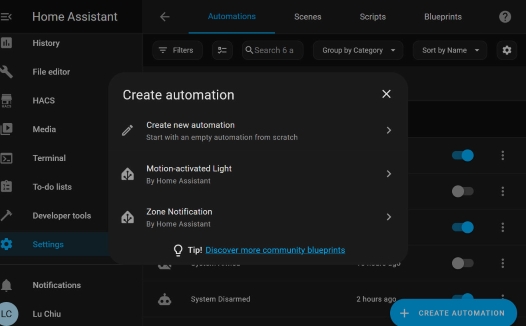

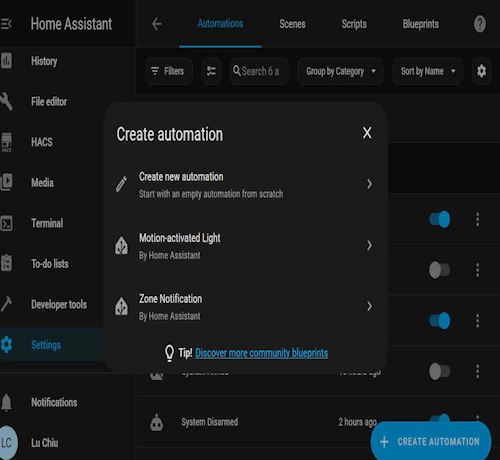
Press Add Trigger
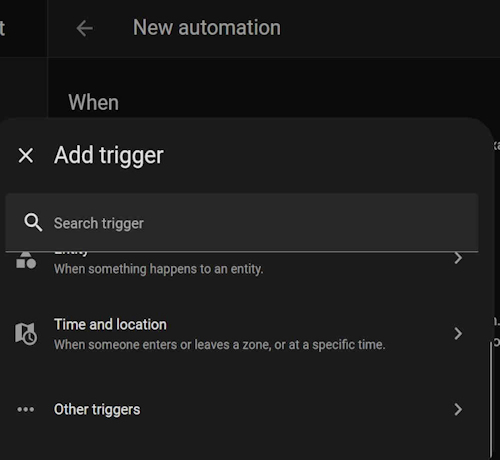
select Other Triggers
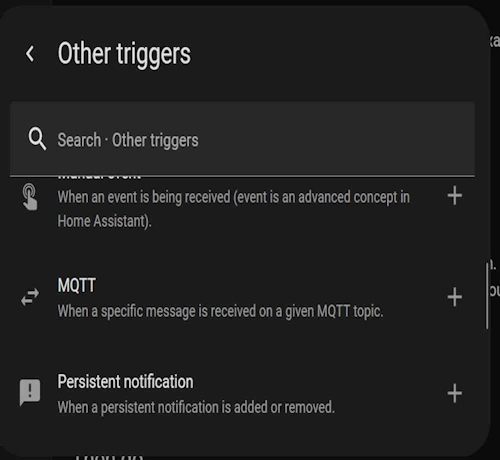
select MQTT
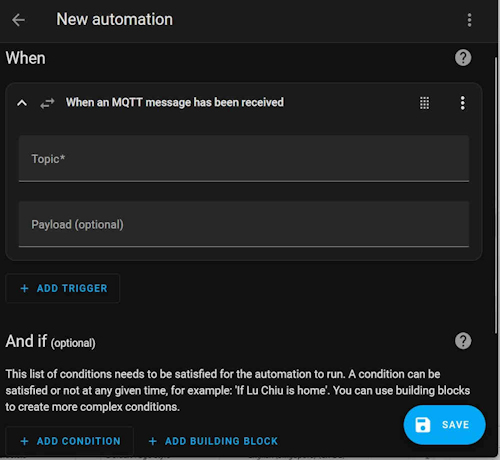
in Topic, chose a topic ie MQTT Topic Published (By Comfort)
Payload = Alarm
If the payload is left blank it means that any change in Alarm State will trigger the notification eg Idle, Trouble, Alert, Alarm
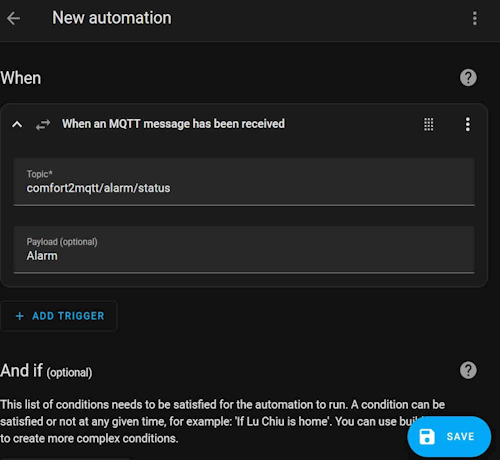
You can add other Triggers to this action if needed.
Select Then Do, and + Add Action
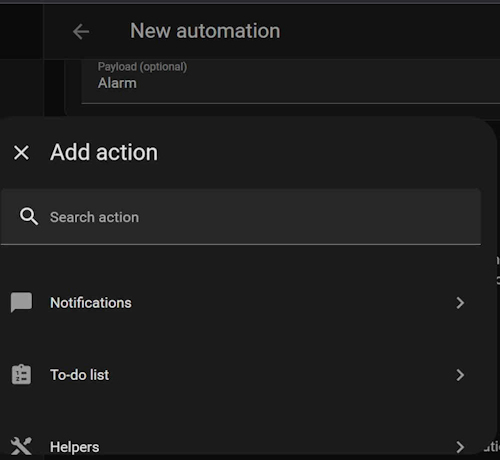
scroll down and select Notifications or enter notifications in the search bar;
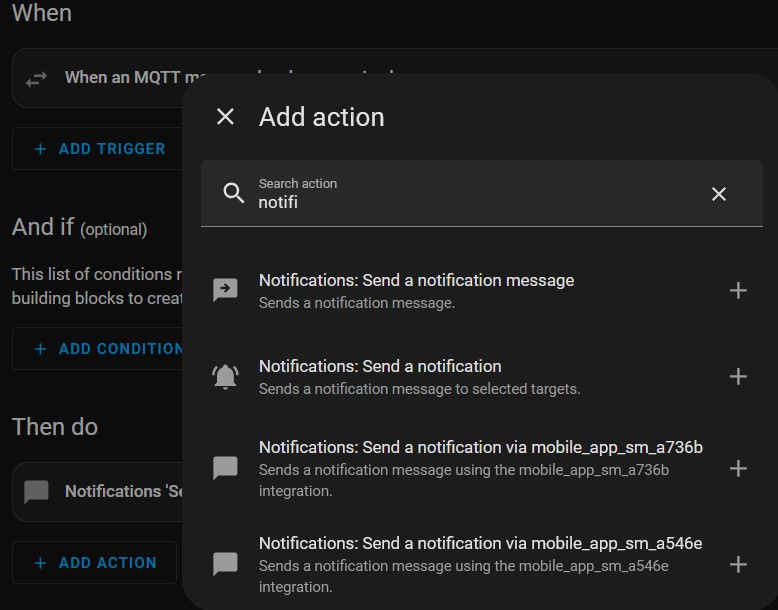
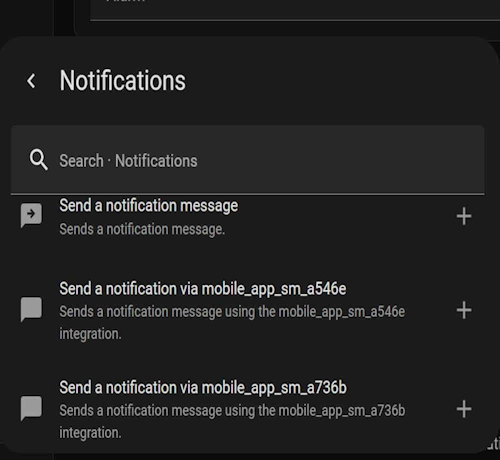
Look for Send a notification via mobile app and select the ID for the mobile device that has been added as a User
If more than 1 phone is required, add another action and select the next mobile device
Press Save
You will be asked to enter a Name for the automation, eg Comfort Alarm
You need the Home Assistant app to be installed on Android or iOS and enable notifications.
First sign in to companion app on your mobile phone (iOS or android) to allow the mobile phone to be discovered by Home Assistant.
Check Mobile App Integration:
- In Home Assistant, navigate to Settings > Devices & Services > Integrations.
- Look for the Mobile App integration. This should automatically recognize your phone as a device.
- This integration is by default enabled, unless youâve disabled or removed the default_config: line from your configuration. If that is the case, the following example shows you how to enable this integration manually:
# Example configuration.yaml entry
mobile_app:
Go to settings > automations & scenes > create new automation
Press Add Trigger
select Other Triggers
select MQTT
in Topic, chose a topic ie MQTT Topic Published (By Comfort)
- comfort2mqtt/alarm - current MQTT Security Mode (disarmed, pending, armed_home, armed_away, armed_night, arm_vacation, triggered)
- comfort2mqtt/alarm/online - \'1\' for online, \'0\' for offline
- comfort2mqtt/alarm/message - Informational messages, e.g. the zone that triggered an alarm
- comfort2mqtt/alarm/timer - countdown entry/exit timer in seconds when arming to away mode or entering. updates every second.
- comfort2mqtt/alarm/status - Status of the alarm (Idle, Trouble, Alert, Alarm)
- comfort2mqtt/alarm/bypass - List of Bypassed zones. EG. 1,3,5,7,9. \'0\' indicates no bypassed zones.
- comfort2mqtt/alarm/LWT - Online or Offline text status
- comfort2mqtt/alarm/refresh - Trigger a refresh of all objects. Used when a refresh of all object states are required.
- comfort2mqtt/alarm/connected - Status of LAN Connection to Comfort. \'1\' when connected and logged in.
- comfort2mqtt/alarm/doorbell - \'0\' for off/answered or \'1\' for on
- comfort2mqtt/alarm/mode - Integer values for current Alarm Mode. 0 - 4 (Off, Away, Night, Day, Vacation), See Comfort M? or MD documentation.
Payload = Alarm
If the payload is left blank it means that any change in Alarm State will trigger the notification eg Idle, Trouble, Alert, Alarm
You can add other Triggers to this action if needed.
Select Then Do, and + Add Action
scroll down and select Notifications or enter notifications in the search bar;
Look for Send a notification via mobile app and select the ID for the mobile device that has been added as a User
If more than 1 phone is required, add another action and select the next mobile device
Press Save
You will be asked to enter a Name for the automation, eg Comfort Alarm
