Welcome, Guest
You have to register before you can post on our site.

Username
  

Password


Search Forums

(Advanced Search)

Latest Threads
UCMA/Pi for Home Assistan...
Last Post: PaulGordon
3 hours ago
System not announcing are...
Last Post: raygregg114
3 hours ago
Cbus to KNX translator - ...
Last Post: Home
10 hours ago
Trouble connecting
Last Post: Home
09-21-2026, 03:42 PM
Comfort Analog Input Grap...
Last Post: slychiu
09-12-2026, 08:31 AM
Comfort Server Manager 2
Last Post: slychiu
09-08-2026, 04:48 AM
Comfort App Converter Dow...
Last Post: slychiu
09-08-2026, 02:00 AM
Comfort Android App 2.1 t...
Last Post: slychiu
09-08-2026, 01:56 AM
Ucm velbus c9mmunicati8ns...
Last Post: wexfordman
09-05-2026, 11:29 PM
Custom Events
Last Post: Ingo
08-29-2026, 08:47 AM

Forum Statistics
» Members: 53,661,   » Latest member: PaulGordon,   » Forum threads: 5,213,   » Forum posts: 28,672,  
Full Statistics

  UCM/4G 4G and 3G networks
Posted by: slychiu - 12-26-2024, 04:34 AM - Forum: GSM Module - No Replies

The UCM/4G works on 4G (or LTE) networks. It is not able to work in 5G -only networks, but 5G SIM cards can normally work on 4G Phones. However, UCM/4G makes use of 3G for Voice calls - it does not support VoLTE (Voice Over LTE). Check the mobile settings on the phone to ensure that LTE or 4G is selected, NOT 5G. for example for Samsung phones, go to Settings > Mobile Networks > Network Mode. select LTE/3G/2G (autoconnect) or 4G/3G/2G, as LTE is the same as 4G. Do NOT select 5G (ignore the Data Roaming button, it does not affect the network setting) If the SIM card uses VoLTE for voice calls then Voice calls will NOT work on UCM/4G.  To fix this, disable VoLTE on the SIM Card. On a Samsung Phone, go to Settings > Mobile Networks > VoLTE Calls, and Unselect this feature.  Note that some phones do not show this setting. [color=\"#ff0000\"]Note that the new UCM/GSMA7608 module supports VoLTE[/color] Also if the SIM Card is 5G, Disable \"Use 5G Standalone Networks\", and select Network Mode = LTE/3G/2G (auto connect). Remove the SIM Card from the phone and insert into the UCM/4G. The UCM/4G should now  be able to dial out by voice calls

Print this item

  Comfort with Home Assistant
Posted by: slychiu - 12-20-2024, 08:22 AM - Forum: NEWS & Announcements - No Replies

The new forum for Comfort with Home Assistant is up, see http://www.comfortforums.com/forum143/

This includes instructions to set up Comfort with Home assistant on a Raspberry Pi

Print this item

  Comfort2MQTT with Home Assistant Part 5 - Battery & DC Voltages
Posted by: slychiu - 12-20-2024, 07:49 AM - Forum: Comfort with Home Assistant - Replies (3)

For the upcoming Comfort with ARM processor, the Battery and  Charger DC Volatge levels can be displayed n the Dashboard. 


Print this item

  U/UCM no life from the ETH port
Posted by: palmlodge - 12-15-2024, 08:48 PM - Forum: UCM Problems - Replies (5)

I have had this unit for some time and has had no use of late. I want to start using this as the connectivity for the Home Assistant MQTT bridge, but found the ETH port has no life and no link on the switch. The UCM itself appears OK. Honestly, I can\'t recall what I last used it for.
Is there anything wrong with the DIP setup here? Any tips to pop it back to life? It\'s running 7.117, just updated it from an older release.
Thanks


Attached Files Thumbnail(s)
   
Print this item

  UCM/GSM4 not connecting
Posted by: strickers - 12-09-2024, 02:50 PM - Forum: GSM Module - Replies (5)

Hello
I recently upgraded all my comfort firmware so it would be ready for the recent instructionson connection to home assist.I used the \'check for firmware updates\' options and all worked successfully but now my GSM4 module will not send messages. It either sits at \'connecting to GSM network\' or \'Signal strength 0\'. Before the upgrade it sat around 2 or 3.
The GSM module type is \'900-2G\'. Its currently got firmware version 7.240.
Any ideas?
Thank you Smile

Print this item

  Comfort2MQTT with Home Assistant Part 4- Backup and Restore
Posted by: slychiu - 12-07-2024, 07:29 AM - Forum: Comfort with Home Assistant - Replies (2)

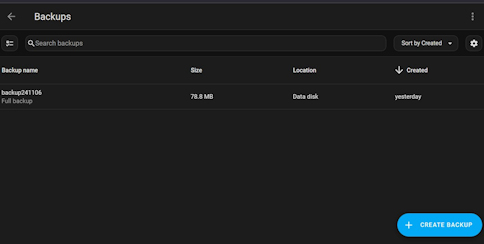
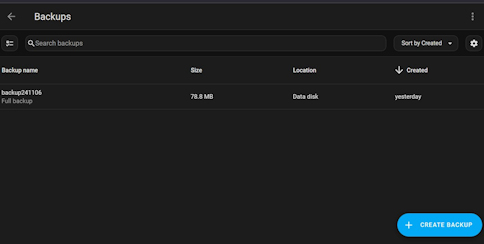
To backup full or partial, go to Settings > System > Backup.  
The list of previous backups is shown. Create Backup to start a new back and asign a name for the backup. The backup will be in the backup folder in the root directory.


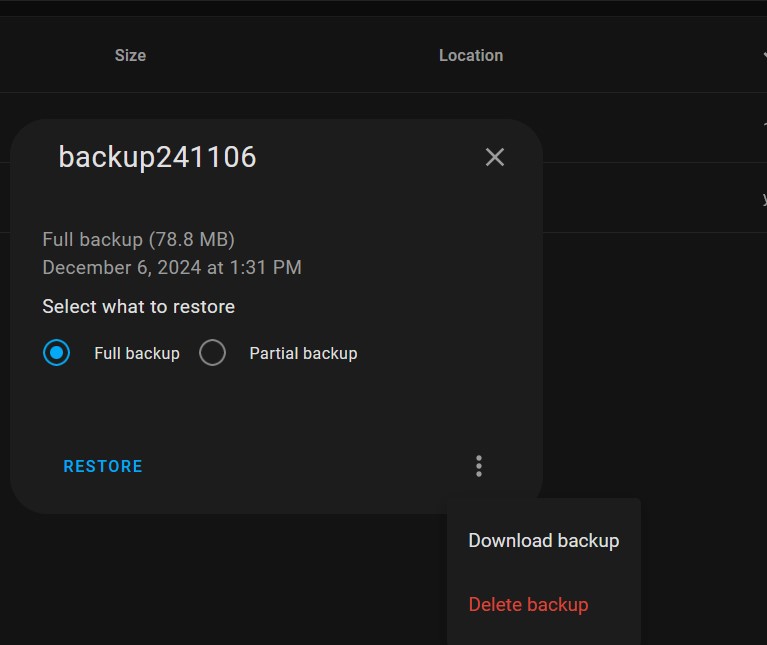
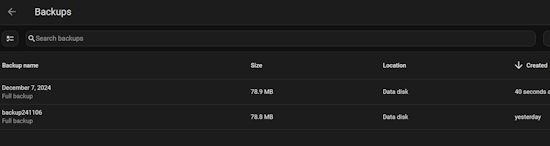
You can also download a backup to the PC by clicking on the backup, click the 3 dots on the bottom right, and select Download Backup. This allows you to save a backup on your PC in case the Raspberry Pi has to be replaced.


The new backup will be listed in the backup screen


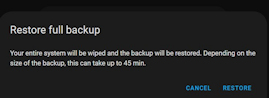
To Restore a backup, select the backup and click, select Restore full backup and oress Restore.


Print this item

  Comfort 2MQTT with Home assistant Raspbery Pi Questions and comments
Posted by: slychiu - 12-04-2024, 10:41 AM - Forum: Comfort with Home Assistant - Replies (42)

This topic is for questions and comments as the original posts are closed topics

Print this item

  Comfort2MQTT with Home Assistant for Raspberry Pi
Posted by: slychiu - 12-02-2024, 01:52 AM - Forum: UCM/Pi - Replies (2)

For an introduction to the great work done by koochyrat and Ingo to integrate Comfort with MQTT and Home Assistant see http://www.comfortforums.com/forum143/5577.html
There also a link to step by step instructions to implement this on a raspberry Pi

Print this item

  Comfort2MQTT with Home Assistant Introduction
Posted by: slychiu - 12-01-2024, 10:16 AM - Forum: Comfort with Home Assistant - Replies (4)

This is to introduce the great work done by koochyrat and Ingo to integrate Comfort with MQTT and Home Assistant see https://www.home-assistant.io/

Below are some features taken from the Home assistant website.
Home Assistant is Open source home automation that puts local control and privacy first
Home Assistant integrates with over 1000 different devices and services.

Once started, Home Assistant will automatically scan your network for known devices and allow you to easily set them up.

Home Assistant keeps your data local, no need for a cloud.
Home Assistant runs on many platforms including;

  • Linux
  • Raspberry Pi
  • MacOS
  • Windows via a Windows VM
  • Virtual Machines
  • NAS systems
It can be accessed through a web-based user interface, by using companion apps for Android and iOS, or by voice commands via a supported virtual assistant, such as Google Assistant, Amazon Alexa, Siri

Home Assistant communicates with your devices locally, and will fallback to pulling in data from the cloud if there is no other option. No data is stored in the cloud, and everything is processed locally.

Use the official Home Assistant apps, a convenient companion to quickly control your devices and be notified when things happen in your home, even on your wrist using the Apple Watch.

The apps can also be used to send your location home to use presence detection as part of your automations. Data is sent directly to your home, no access by third-parties.

Home Assistant allows you to get on top of your energy use with its home energy management feature. Gain new insights, optimize your solar panel production, plan energy use and save money. 

some of the integrations available with Home Assistant include;  

Below are examples of dashboards created by koochyrat and Ingo for the Comfort Add-on


Screenshots for Mobile App


Notification to mobile phone is shown below


The status of the connection, firmware, serial numbers etc can be seen by using MQTT


For the  new upcoming Arm Processor Comfort, the Battery and Charger states and Voltages can be seen on the Dashboard;


Detailed Step-by-step Instructions for setting up Comfort2MQTT with Home Assistant on a  Raspberry Pi 5 are at http://www.comfortforums.com/forum6/5572.html

Print this item

  Comfort2MQTT with Home Assistant Part 3 - Notifications
Posted by: slychiu - 11-30-2024, 08:38 AM - Forum: Comfort with Home Assistant - Replies (4)

Notifications
You need the Home Assistant app to be installed on Android or iOS  and enable notifications. 
First sign in to companion app on your mobile phone (iOS or android) to allow the mobile phone to be discovered by Home Assistant.
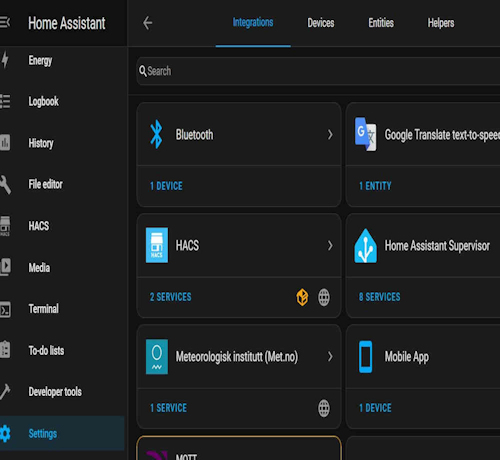
Check Mobile App Integration:

  • In Home Assistant, navigate to Settings > Devices & Services > Integrations.
  • Look for the Mobile App integration. This should automatically recognize your phone as a device.
  • This integration is by default enabled, unless you’ve disabled or removed the default_config: line from your configuration. If that is the case, the following example shows you how to enable this integration manually:

    # Example configuration.yaml entry
    mobile_app:


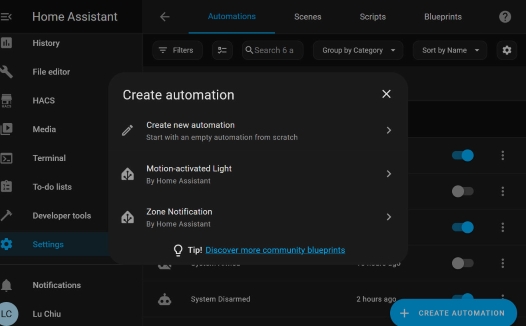
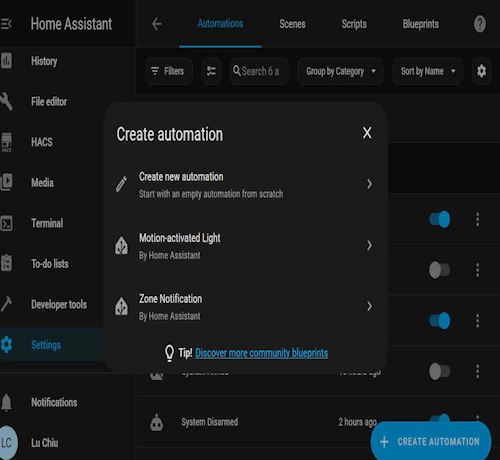
Go to settings   > automations & scenes     > create new automation


Press Add Trigger
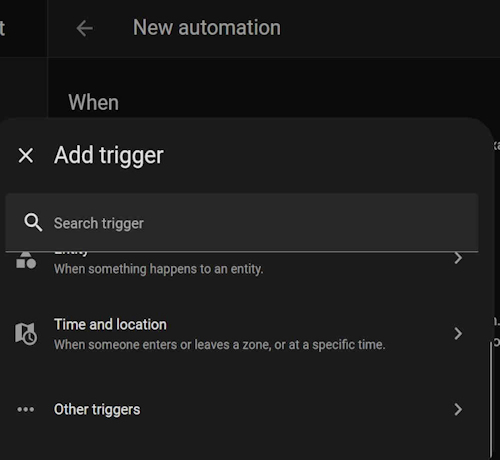


select Other Triggers
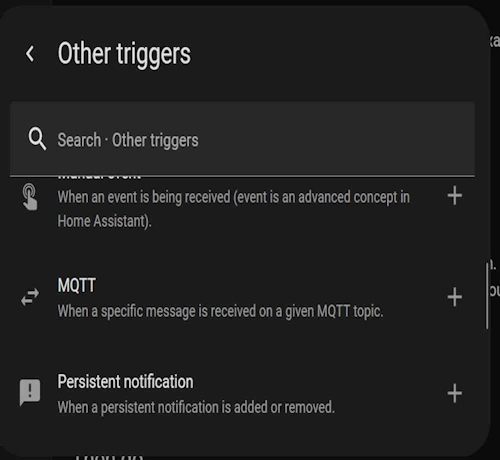

select MQTT 
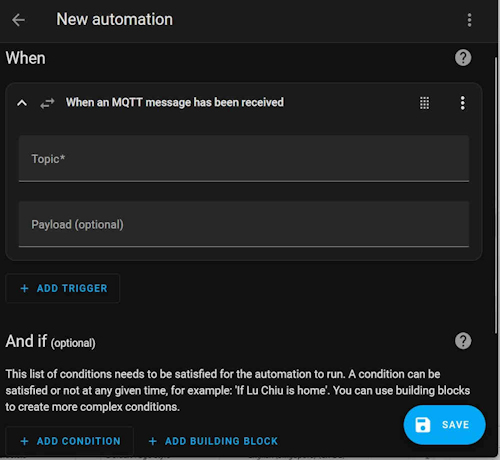


in Topic, chose a topic ie MQTT Topic Published (By Comfort)
  • comfort2mqtt/alarm - current MQTT Security Mode (disarmed, pending, armed_home, armed_away, armed_night, arm_vacation, triggered)
  • comfort2mqtt/alarm/online - \'1\' for online, \'0\' for offline
  • comfort2mqtt/alarm/message - Informational messages, e.g. the zone that triggered an alarm
  • comfort2mqtt/alarm/timer - countdown entry/exit timer in seconds when arming to away mode or entering. updates every second.
  • comfort2mqtt/alarm/status - Status of the alarm (Idle, Trouble, Alert, Alarm)
  • comfort2mqtt/alarm/bypass - List of Bypassed zones. EG. 1,3,5,7,9. \'0\' indicates no bypassed zones.
  • comfort2mqtt/alarm/LWT - Online or Offline text status
  • comfort2mqtt/alarm/refresh - Trigger a refresh of all objects. Used when a refresh of all object states are required.
  • comfort2mqtt/alarm/connected - Status of LAN Connection to Comfort. \'1\' when connected and logged in.
  • comfort2mqtt/alarm/doorbell - \'0\' for off/answered or \'1\' for on
  • comfort2mqtt/alarm/mode - Integer values for current Alarm Mode. 0 - 4 (Off, Away, Night, Day, Vacation), See Comfort M? or MD documentation.
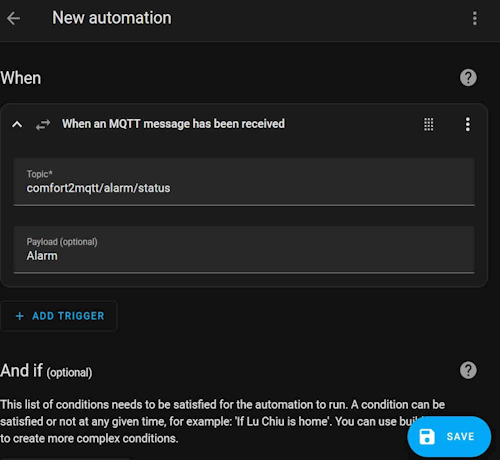
Eg to select Alarm State = Alarm , enter topic = comfort2mqtt/alarm/status
Payload = Alarm
If the payload is left blank it means that any change in Alarm State will trigger the notification eg Idle, Trouble, Alert, Alarm

You can add other Triggers to this action if needed.
Select Then Do, and + Add Action
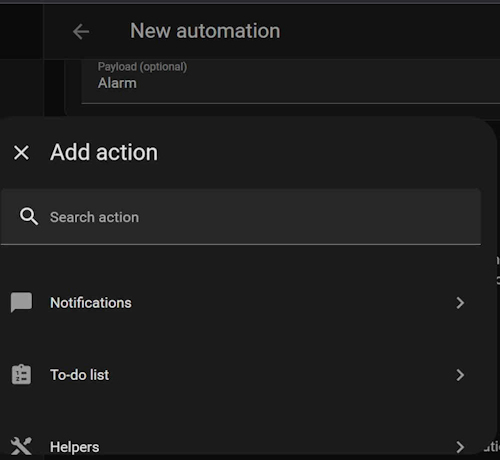


scroll down and select Notifications or enter notifications in the search  bar;
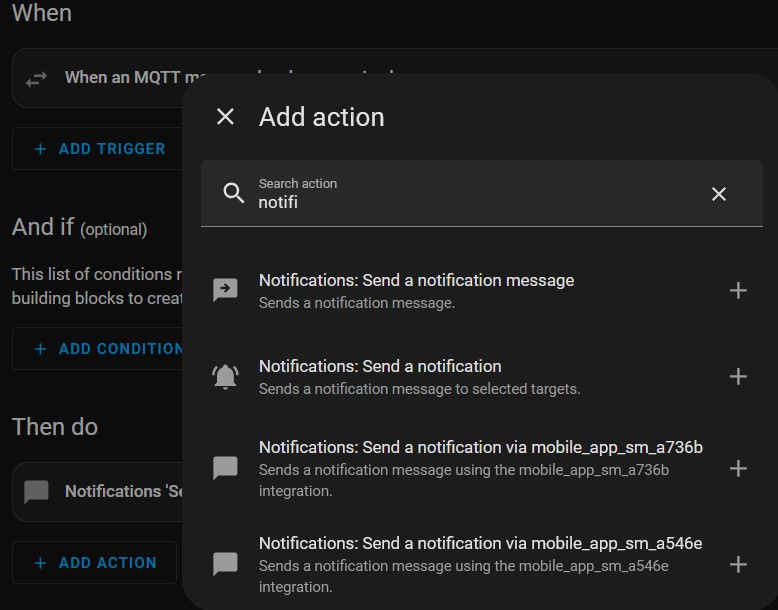

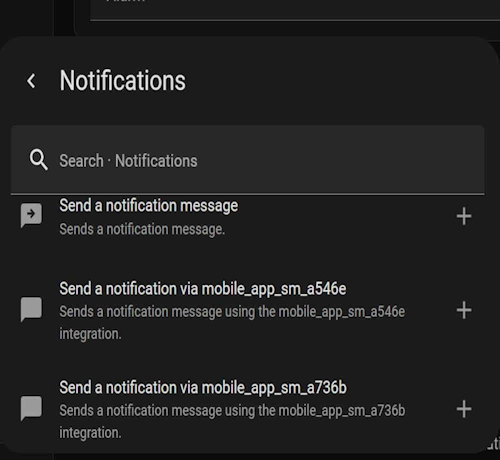
Look for Send a notification via mobile app and select the ID for the mobile device that has been added as a User
If more than 1 phone is required, add another action and select the next mobile device
Press Save


You will be asked to enter a Name for the automation, eg Comfort Alarm


Print this item


Online Users
There are currently 1333 online users. » 0 Member(s) | 1328 Guest(s)
Applebot, Baidu, Bing, Facebook, Google

Powered By MyBB, © 2002-2026 Melroy van den Berg.